Client Hub
Editing Your Site with AI
Two ways to change your site with AI: quick edits that run in the background, or a full chat session with a live preview.
The fastest way to change your website is to just ask. The Hub gives you AI in two places, and they fit different jobs:
- Quick edits: click any element on the page, tell the AI what to change, and it happens in the background while you keep working.
- Chat sessions: a full conversation with a live preview of your site, for bigger changes you want to watch happen.
Quick edits
For small changes, you don’t need a conversation. Click any text element in the editor, type what you want (“make this friendlier”, “update the hours to 9-5”), and send it. The AI applies the change in the background. You can close the tab and move on with your day.
Every quick edit is tracked in the Deployments tab. Any request you send outside a chat session shows up there with all its data: what was asked, what the AI changed, and the resulting publish. Deployments only cover these background edits; chat sessions don’t appear there because you already watch those live.
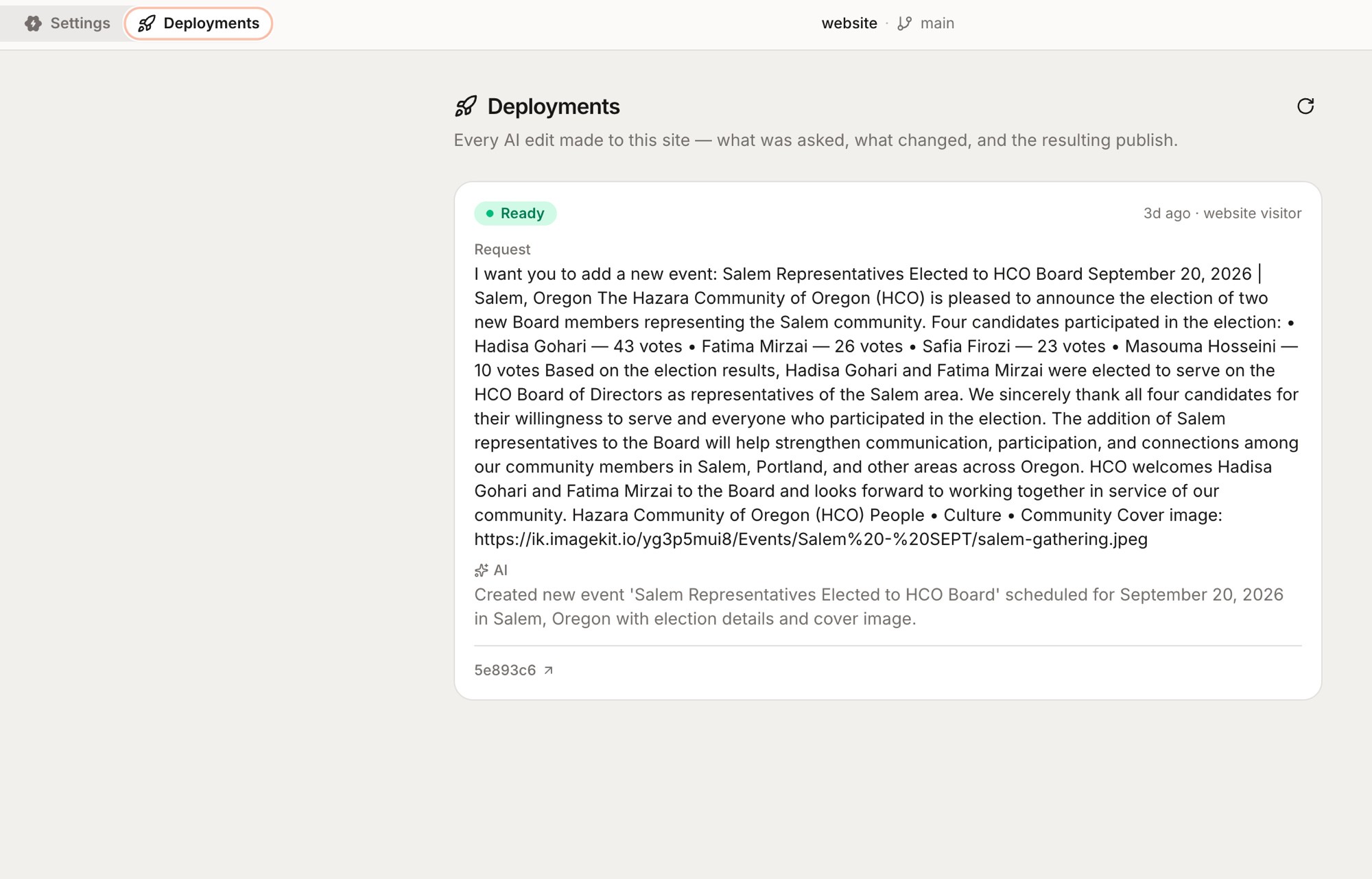
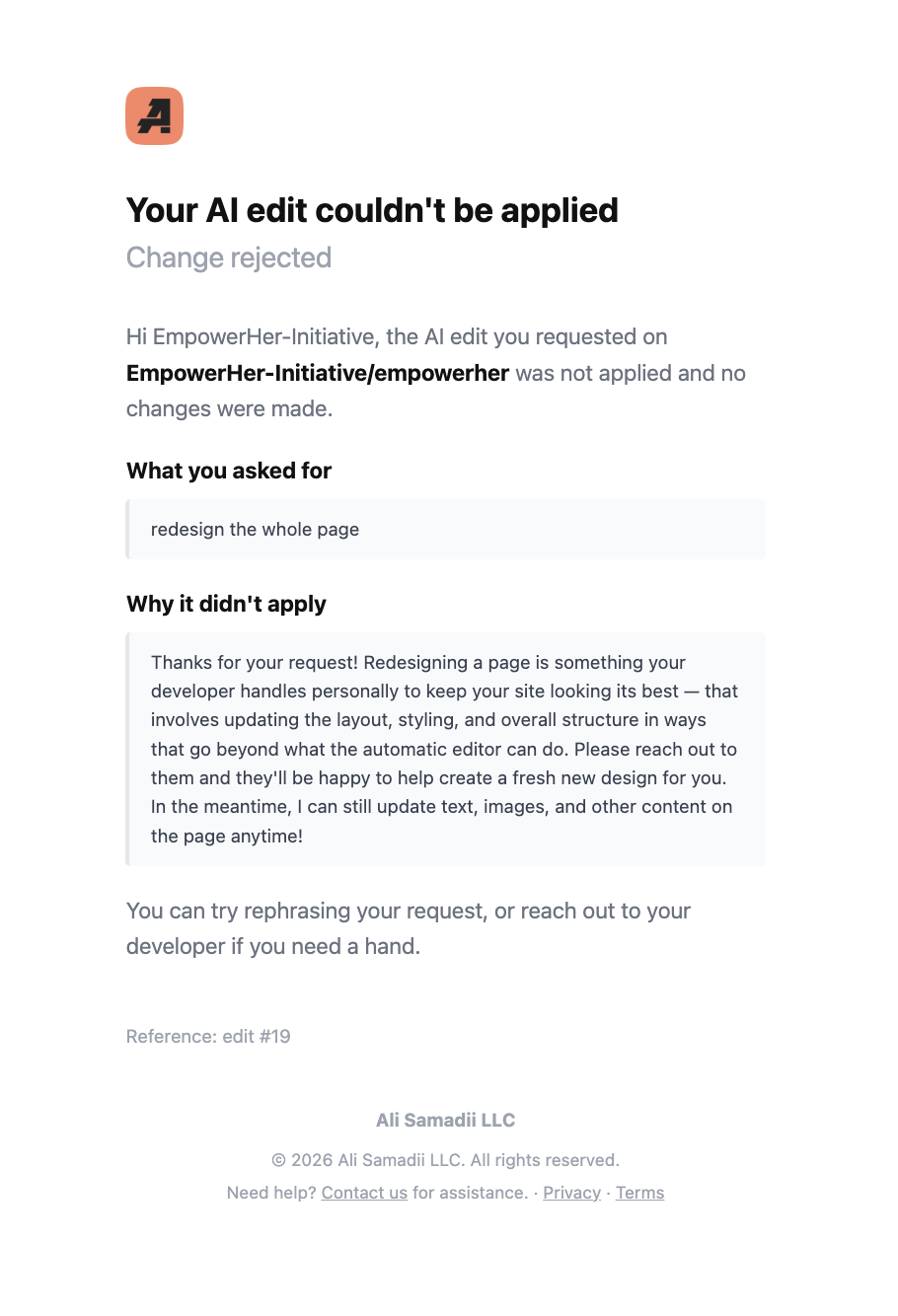
Because quick edits run in the background (you’re not watching them live), the Hub tells you by email if something couldn’t be applied. The email shows exactly what you asked for, why it didn’t apply, and what to do next: rephrase the request, or reach out to us. If a change is rejected, nothing on your site is touched.
Chat sessions
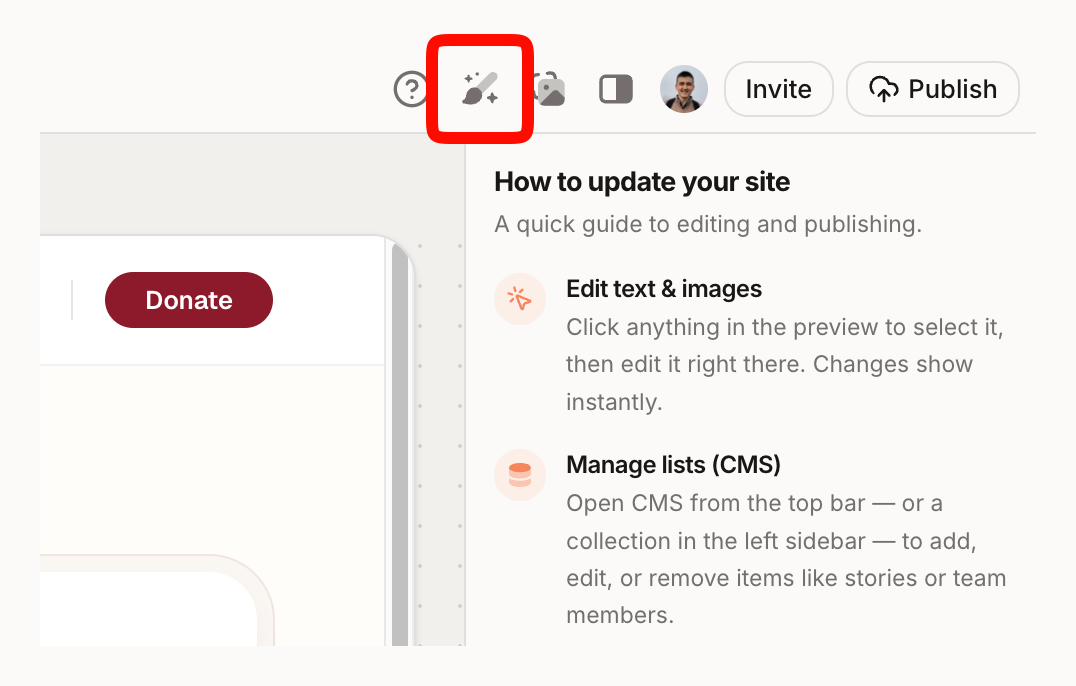
For bigger changes, start an AI session: a chat sidebar next to a live preview of your actual site.
A preview video of chat sessions will be ready soon.
- Open your project in the Hub and start an AI session.
- A live preview of your site loads on the left, with a chat sidebar on the right.
- Type what you want, the way you’d tell a person:
- “Change the headline on the homepage to ‘Serving Jacksonville since 2019’.”
- “Add a new section under services about kitchen remodeling.”
- “Make the photos on the About page bigger.”
- The AI makes the change and the preview updates in front of you. Not quite right? Keep talking (“a bit smaller”, “use a warmer tone”) until it is.
You see everything live before publishing
When you enable a chat session, you get a preview URL: your own private copy of the site where every change shows up live as the AI works. Open it on your phone, share it with a colleague, poke around. Your visitors never see any of it.
That’s the point of a session: you watch every change with your own eyes, so when you press Publish, you do it freely and with confidence. Your changes go to the live site, usually within a minute.
What if I break something?
You can’t. Three safety nets:
- Chat sessions happen on a preview that’s completely separate from your live site, so experiments cost nothing.
- Quick edits that can’t be applied are rejected and change nothing; you get an email explaining why.
- Every published change is saved in version control, so we can restore any previous version of your site at any time.
Tips for good requests
- One change at a time works better than a list of ten.
- Point at the page: “on the homepage”, “in the footer”, “the pricing section”.
- Paste the exact text you want when wording matters.